
Design Studio - DIY Art Space
DOSA AppsArt & Design
2.949.00 Reviews
- Version
- 111.1.1
- Installs
- 100.00K
- Age Rating
- Everyone
Screenshots
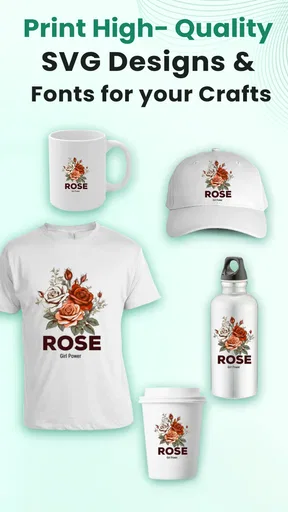
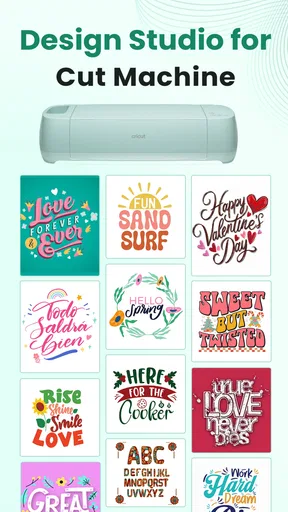
Our Review of Design Studio - DIY Art Space
 Analysis by Appyee
I approached Design Studio - DIY Art Space as a practical companion for small creative projects rather than a complete replacement for desktop design software. It sits in the Art & Design category, comes from DOSA Apps, and is aimed at people who want ready-made visual material for cutting machines, sublimation work, lettering, and monogram projects. My first impression was that its appeal depends less on artistic freedom and more on how quickly its library can move an idea from “I need a design” to “I can prepare this for production.”
The app is free to install, with optional in-app purchases ranging from $0.99 to $99.99 per item. That makes it easy to test without committing money immediately, although the purchase range is important if you plan to use it as a regular source of design assets. It is rated for Everyone, runs on Android 8.0 or later, and the current version is 111.1.1. Its average rating is 2.9 from around 193 ratings and 49 written reviews, so I would approach it with realistic expectations rather than assuming it will feel polished for every user.
From a blank project to a usable design
I find that the most useful way to judge this section is by whether a promising idea can become a practical project without unnecessary detours. I’ll focus on choosing a manageable first design and the small checks that make the next step easier, rather than treating a large collection as a reason to keep browsing. That leads naturally into how to start with the right kind of project.
Starting with the right kind of project
The best way to use this app is to begin with a specific physical outcome. For example, I would not open it simply hoping to “make something creative.” I would start with a clear job: a name for a shirt, a simple graphic for a sticker, a monogram for a gift, or artwork that needs to be transferred through a sublimation workflow. That starting condition matters because the app’s value is tied to its collection of ready-to-adapt material, not to unlimited illustration tools.
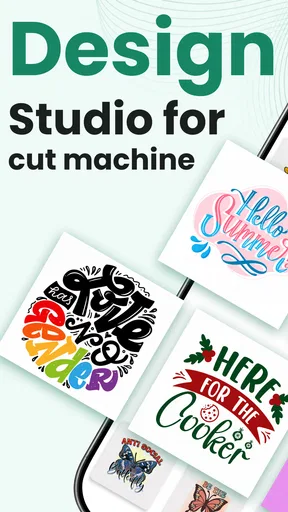
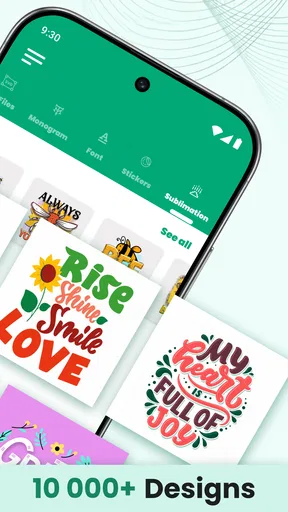
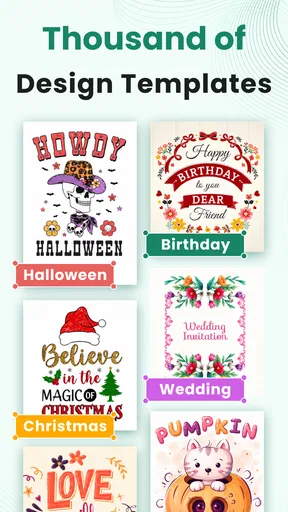
The library is presented around SVG cut files, sublimation designs, fonts, and monograms. In practice, that gives the app a different character from a general drawing application. A blank canvas app asks me to create everything. This one is more useful when I already know the shape, mood, or lettering style I want and need a starting point that can be adjusted for a real project.
For a beginner, this can remove the intimidating first step. Instead of learning how to construct a decorative wordmark from individual curves, I can look for a suitable base and concentrate on the final arrangement. For an experienced maker, the benefit is speed. A familiar design language can be selected quickly, then adapted to suit a material, recipient, or occasion.
There is also a useful distinction between choosing an asset and choosing an asset that will survive production. A design that looks attractive on a phone may become awkward when cut, weeded, pressed, or printed. I found it helpful to judge every option by its intended output: thin interior details, tight spaces, and complicated overlaps deserve more caution than a clean silhouette. The strongest workflow is not “pick the prettiest file”; it is “pick the file that matches the next physical step.”
Browsing is part of the design process
When I use a library-based design app, browsing is not a minor preliminary task. It determines how much time I save. Design Studio - DIY Art Space is most comfortable when I narrow my idea before searching. Thinking in terms of a subject, a lettering style, and a final use is more productive than scrolling without a plan.
For instance, a monogram for a small gift should be judged differently from a large shirt graphic. At a small size, a delicate letter arrangement may lose clarity, while a bold design can remain readable. A sublimation project allows a different kind of visual detail than a cut-file project because the production method does not treat every line in the same way. The app can supply the starting material, but I still have to make that technical decision.
This is one of the less obvious trade-offs. A large collection feels generous, but more choices can also slow down the handoff from browsing to editing. I recommend saving only the few candidates that fit the project instead of collecting dozens of vaguely attractive options. That keeps the later comparison focused and reduces the temptation to redesign the project around whatever happens to appear first.
Preparing the design for its destination
Once I have a promising asset, I treat the next stage as preparation rather than decoration. I check whether the lettering is readable, whether the main shape has enough visual weight, and whether the design will still make sense when separated from the screen. This is especially important for monograms, where overlapping letters can look elegant but become confusing if the final size is too small.
I also think about the recipient and the surface. A design for a child’s item may need a simpler outline than a decorative piece for an adult. A graphic intended for fabric may need a different balance than one intended for a rigid surface. The app’s collection can help me get started, but it does not remove the need to make these choices.
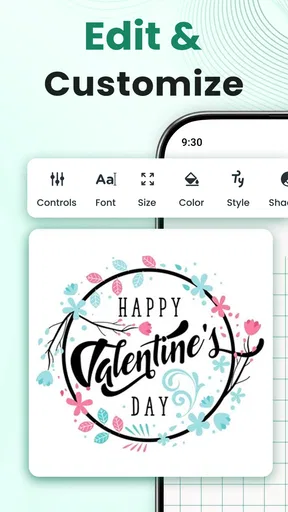
That is where the app compares favorably with starting from a completely blank canvas. It gives me a visual shortcut. Compared with a full desktop editor, however, it is less likely to be the place where I perform every advanced adjustment. I see it as the design-source stage in a broader workflow, especially when the final production tool already handles sizing, placement, and machine-specific preparation better.
The handoff to cutting, printing, or another editor
The handoff is the point I would examine most carefully before relying on the app for a paid order. The store summary emphasizes SVG cut files and sublimation material, which signals that the intended journey continues beyond the phone. The design must eventually reach the software or equipment that will cut, print, press, or otherwise produce it.
That means I would not assume that selecting a design equals completing a project. I would first confirm that the chosen asset fits the next tool in my process and that I can work with it in the way I expect. A careful user should also preview the final composition at the intended size before committing material. This simple pause can expose crowded lettering, fragile details, or an unbalanced layout before they become wasted supplies.
For a hobbyist, this extra check may feel like a small inconvenience. For someone making several items, it becomes essential. The app can shorten the creative search, but the production handoff still depends on organization. I would keep a clear naming habit for saved designs and separate finished candidates from ideas that still need revision. That prevents a common mistake: sending an attractive draft to the machine simply because it was the most recent file viewed.
A realistic everyday scenario
Imagine I need a personalized tote bag for a friend and have only a short evening to prepare the artwork. I would begin with the name, decide whether I want a monogram or a fuller decorative treatment, and browse the relevant lettering or cut-file options. Instead of drawing every element myself, I would select a base that already has the right personality.
Next, I would test the design mentally against the tote’s surface. Is the name clear from a normal viewing distance? Are the narrow parts likely to create trouble during cutting? Does the arrangement leave enough room for the bag’s seams and handles? If the design passes those checks, I would move it to the next stage of my usual production workflow, inspect the preview there, and only then prepare the material.
In that scenario, the app’s real contribution is time saved at the beginning. It does not magically finish the tote bag, and it does not replace judgment. It gives me a more useful starting point than an empty page, provided I am willing to perform the practical checks that follow.
Where the workflow becomes less comfortable
The average rating of 2.9 suggests that the experience may not be consistently smooth for everyone, and I would take that seriously. A library-driven app can be frustrating when browsing, selecting, or moving an asset into the next stage feels less direct than expected. Even a strong collection loses value if the route from discovery to usable output is unclear.
The free entry point is helpful, but the optional purchase range means I would pay attention to what is included before building a project around a particular asset. A casual user may be happy exploring free material and occasionally buying something specific. Someone who expects unrestricted access to everything may find the economics less comfortable, especially at the upper end of the listed per-item range.
This is also not the right choice for every kind of designer. If I want detailed digital painting, advanced photo compositing, precise vector construction, or a broad professional layout system, I would choose a dedicated editor instead. Design Studio - DIY Art Space makes more sense when the desired outcome is a practical craft design and the library is more valuable to me than a deep toolbox.
Who will get the most from it
I think the app is best suited to beginners who use cutting machines or create personalized items and want a faster route to attractive starting points. It can also suit casual makers who do not want to learn a full design suite just to prepare occasional gifts. The presence of fonts and monograms makes it particularly relevant to projects built around names, initials, and personalization.
Small creative businesses may find it useful during the idea stage, but I would test the complete workflow before depending on it for customer deadlines. The important question is not only whether the artwork looks good. It is whether I can consistently locate suitable designs, prepare them without confusion, and pass them into the production process with enough control.
I would skip it if my priority is total originality from the first stroke. I would also look elsewhere if I need a mature collaboration system, detailed brand controls, or a single application that manages design, technical preparation, and production without handoffs. In those cases, a more specialized desktop or mobile editor may justify its steeper learning curve.
Small habits that improve the experience
My first tip is to choose the production method before choosing the artwork. Do not browse a cut-file collection with sublimation expectations, or judge a detailed printable design as though it must be weeded by hand. The intended method changes what counts as a good design.
My second tip is to inspect lettering at a reduced size before committing. A word can look balanced when it fills the phone screen and lose its personality when used on a small object. Monograms deserve the same treatment: overlapping initials should remain recognizable, not merely decorative.
My third tip is to keep a short list of alternatives. If the first design creates trouble in the next editor or production preview, having two backup choices is faster than restarting the search. This is especially useful when the app’s broad library encourages browsing beyond the original plan.
Finally, I would treat purchases as project decisions rather than impulse downloads. Since individual in-app purchases can range from $0.99 to $99.99, I would verify that an asset fits the intended output and that I am comfortable with the next production step before paying. That habit protects both time and materials.
What I would expect after installing it
Because the app is free and supports Android 8.0 or later, it is accessible to a wide range of Android users. The Everyone content rating also makes it suitable for general household use, although the creative result will still depend on the user’s choices and the intended project. I would install it as a low-risk trial, not as an automatic replacement for the design tools I already trust.
The current version, 111.1.1, is worth noting when troubleshooting or comparing experiences, since app behavior can change between releases. I would keep the workflow simple during the first session: find one suitable design, prepare one small test, and follow it through the handoff. That tells me more than spending an hour browsing without producing anything.
DOSA Apps has positioned this as a design studio for ready-to-use creative material, and that focus is clear. The app is not most convincing when judged as a universal art program. It is more convincing as a source of ideas and starting assets for people who already have a physical project in mind.
My final take after following the full path
I would recommend Design Studio - DIY Art Space to a friend who wants help getting from a blank project to a personalized craft design, especially when SVG-style cut files, sublimation artwork, fonts, or monograms are the main need. The free installation makes experimenting easy, and the collection can reduce the hardest part for beginners: deciding how to begin.
My recommendation comes with a clear condition. I would use it as one part of the workflow, then rely on the next editor or machine software for final checks. The app can help with discovery and initial design direction, but the handoff is where quality, compatibility, and material waste are decided.
My honest verdict: it is worth trying for practical personalization projects, but not worth treating as a complete professional design environment. If your goal is a quick, approachable source of craft-ready inspiration, it may earn a place in your toolkit. If you need deep control, predictable production handling, or a polished all-in-one experience, I would compare it with a dedicated alternative before making it central to your work.
Verdict
Strengths of Design Studio - DIY Art Space
- Simple tools make it easy for beginners to start designing.
- Creative activities can provide a relaxing break from daily routines.
- The app encourages experimentation without needing physical art supplies.
- Projects can help users explore different visual styles and color combinations.
- Suitable for short sessions when you want a quick creative activity.
Limitations of Design Studio - DIY Art Space
- Some features or content may require in-app purchases.
- The creative options may feel limited for experienced digital artists.
- Small screens can make detailed editing less comfortable.
- Certain projects may become repetitive after extended use.
- Performance may vary on older Android or iOS devices.
Other Releases by DOSA Apps
View All
Cube Cipher - Cube Solver
Educational4.5

Recover Deleted Photos App
Photography4.4

Cleanup Your Phone
Personalization4.5

Microphone Amplifier
Medical4.2
Similar Picks in This Category
View All
Canva: AI Photo & Video Editor
Canva4.8

PENUP – Drawing-sharing SNS
Samsung Electronics Co., Ltd.4.5

Crafto
Kutumb App4.6

Sketchbook
Sketchbook4.1

ibis Paint X
ibis inc.4.5

Adobe Express: AI Photo, Video
Adobe4.6
Frequently Asked Questions
What is Design Studio - DIY Art Space?
Design Studio - DIY Art Space is a creative app designed for users who enjoy making digital artwork, decorating projects, and personalized designs. It provides a virtual space where you can experiment with colors, shapes, patterns, and artistic ideas without needing physical materials. The app is suitable for casual creativity, relaxing activities, and users who want to explore design at their own pace.
Is Design Studio - DIY Art Space suitable for beginners?
Yes, the app is generally approachable for beginners because its creative tools are presented in a simple, visually focused format. You can start with basic projects and gradually try more detailed designs as you become familiar with the controls. It does not require professional artistic experience, although users who already enjoy drawing, crafting, or digital design may appreciate the additional freedom and customization options.
Does Design Studio - DIY Art Space work offline?
Some parts of Design Studio - DIY Art Space may be available without an internet connection after the app has been installed, particularly basic creative activities and previously loaded content. However, internet access may still be required for downloading new resources, accessing advertisements, restoring purchases, or receiving updates. If offline use is important to you, it is best to check the current store description and test the app after installation.
Is Design Studio - DIY Art Space free to download and use?
The app can generally be downloaded at no initial cost, but free access may include limitations such as advertisements, locked creative resources, or optional in-app purchases. These purchases may unlock extra tools, designs, content, or a more complete experience. Before starting a project, review the pricing information shown inside the app so you understand which features are free and which require payment.
Is Design Studio - DIY Art Space safe for children?
Design Studio - DIY Art Space can be appealing to children because it encourages creativity and does not depend on competitive gameplay. Nevertheless, parents should review the app’s age rating, advertising, privacy information, and in-app purchase settings before allowing independent use. Younger children may also need help navigating menus or avoiding accidental purchases, so parental supervision is recommended, especially during the first sessions.
